
What Moonlink does
About 3 minutes to read
#Overview
Moonlink captures your mouse input (movement, buttons, scroll) and forwards it over USB to a hardware device that appears as a native HID mouse to the target machine. Mouse movement is injected through a named pipe, bypassing the Windows cursor entirely.
#Tabs
Moonlink's interface is organized into three tabs: Device, Tuning, and Misc.
#Device Tab
#Connection
| Setting | Description |
|---|---|
| COM Port | The serial port your Moonlink device is connected to. Auto-detected on startup if a known device is found. |
| Baud Rate | Communication speed. Moonlink auto-negotiates up to 312500 baud for lowest latency. Default fallback is 115200. |
| Connect / Disconnect | Manually connect or disconnect from the device. |
#Input Masking
Block specific mouse buttons from being forwarded to the device. Useful when your software uses certain buttons for its own controls.
| Setting | Description |
|---|---|
| Block Right Click | Prevents right-click from being sent to the device. |
| Block Back Button | Prevents mouse back button (Mouse4) from being sent. |
| Block Forward Button | Prevents mouse forward button (Mouse5) from being sent. |
#Tuning Tab
#Blend
Controls how physical (your hand) and injected mouse movements interact.
| Setting | Description |
|---|---|
| Bypass Mode | When enabled, physical and injected input are added together raw with no blending or filtering. |
| Physical Priority Window | How long (1–1000 ms) after you stop moving your mouse before injected input resumes. Higher values give your physical mouse stronger priority. Default: 50 ms. |
Status indicator — Displays idle or active to show whether physical mouse movement is currently detected.
#Misc Tab
#Output
| Setting | Default | Description |
|---|---|---|
| Output Rate | 1000 Hz | How many packets per second are sent to the device. Options: 1000, 2000, 4000, 8000 Hz. Higher rates use interpolation to subdivide movements. |
| Enable Interpolation | Off | Smooths output at rates above 1000 Hz by subdividing each movement across multiple packets. When disabled, output runs at 1000 Hz regardless of the rate setting. |
#Gear Menu (top-right)
App-level settings accessible from the gear icon.
| Setting | Description |
|---|---|
| Always On Top | Keeps the Moonlink window above other windows. |
| Debug Output | Enables verbose logging to Moonlink-Debug.log. |
#Config File
All settings are saved to moonlink.json in the Moonlink directory. The file is created automatically with defaults on first launch.
{
    "Block Right Click": false,
    "Block Back Button": false,
    "Block Forward Button": false,
    "Always On Top": true,
    "Debug Output": false,
    "COM Port": "",
    "Baud Rate": "115200",
    "Bypass Mode": false,
    "Physical Priority Window": 50,
    "Output Rate": "1000",
    "Interpolation Enabled": false
}
All settings take effect immediately — no restart required.
#If you're experiencing issues with Moonlink, follow these steps to diagnose and resolve them:
#1️⃣ First-Time Login
- Register an Account:
- Enter your username and password.
- Input 1 of the following: Color, AI, or Moonlink key.
- Ensure there are no extra spaces in the key field before clicking 'Register.'
#2️⃣ Moonlink Not Working After Login
#Check Folder Structure
- Ensure there is only one Moonlink folder on your 2nd PC.
- Multiple folders can cause conflicts.
#Verify Firmware Upload
Make sure the correct firmware is uploaded to your Arduino:
- For Arduino Leonardo: Upload the
.ino.hexfile. - For Arduino Due: Upload the
.binfile.
#3️⃣ Device-Specific Checks
#For Arduino Leonardo Users
Check CP2102 Connection
- CP2102 should be plugged into the 2nd PC.
- Arduino Leonardo should be plugged into the Main PC.
- Ensure all jumpers are properly connected.
Disable Power Management for CP2102
- Open Device Manager on the 2nd PC.
- Locate CP2102 under Ports (COM & LPT).
- Right-click CP2102 → Select Properties.
- Go to the Power Management tab.
- Uncheck "Allow the computer to turn off this device to save power."
- Click OK.
Try Different USB Ports & Restart PCs
- Test with different USB ports on both PCs.
- Restart both PCs if needed.
#For Arduino Due Users
Check Both Micro USB Cables
- Use high-quality cables that support both data and power (avoid charging-only cables).
- Swap out cables to test if one is faulty.
Try Different USB Ports & Restart PCs
- Test different USB ports on both PCs.
- Restart both PCs if needed.
4️⃣ Check for Windows OS Related Issues
If you try to open the exe and you get a cv2 recursion error, it never opens, force closes, or something else, you may need to follow these steps.
Check for Windows updates
Windows search bar --> settings --> Windows Update --> Check for updates
Sync your clock
Windows search bar --> Time & Language --> Date & Time
Windows 10
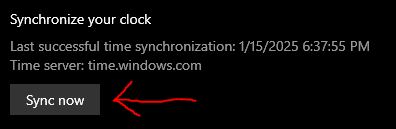
Windows 11

- Install Visual C++ Redistributable Runtimes All-in-One
#5️⃣ Final Steps for Both Arduino Leonardo & Due
- Open Command Prompt (CMD) (Do not run as administrator).
- Drag the Moonlink.exe file into the command window.
- Press Enter and check for any error messages.
#6️⃣ If All Else Fails
- Check the .log file in the Moonlink folder and upload it in the support channel.
Following these steps should help resolve most common issues!
Stuck on a step? Ask in the Moonlight Discord and a staff member will help.