
Troubleshooting
Find your symptom or the exact message on screen, then follow the steps under it. Built from the questions asked most often in support.
About 11 minutes to read
Find the symptom or the exact message you see, then work through the steps under it in order. Each section starts with the cause that turns out to be the answer most often.
If you are setting up for the first time, follow Getting started from the top before using this page. Most first-day problems are a skipped step.
#Moonlight will not open
#Nothing happens, or it closes after a few seconds
- The whole release must be at
C:\MoonLightAI, withMoonlight.exedirectly inside that folder. Not in Downloads, not on another drive, and not nested asC:\MoonLightAI\MoonLightAI. Move the entire folder, not only the executable. - Sync the Windows clock: Settings > Time & language > Date & time > Sync now.
- Install pending Windows updates and restart.
- Open Windows Security Protection history. If a Moonlight file was quarantined, restore it or reinstall the complete release.
- Close sandboxing tools such as Sandboxie before opening Moonlight.
Windows 10:
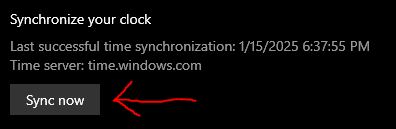
Windows 11:

#"Runtime folder not found"
#"Please reinstall or verify your installation is complete"
Both messages mean the folder is in the wrong place. Move the complete folder so the path is exactly C:\MoonLightAI\Moonlight.exe, then open it again. You do not need to reinstall runtimes.
#Errors that started right after an update
The new version was copied over the old folder, so files from two versions are mixed.
- Close Moonlight and Moonlink.
- Rename the old folder, for example to
C:\MoonLightAI-old. - Put the complete new release at
C:\MoonLightAI. - Copy across only your own configuration files from the old folder.
Never copy a runtime folder, a DLL or any other program file from an older version.
#Login
#Login never finishes, or sits on "Authenticating"
Several different causes look exactly the same here. Check them in this order.
- The Windows clock is out of sync. Sync it (steps above) and try again.
- You reinstalled Windows, changed parts, or moved to another PC. Your account is tied to the PC it first ran on. It will not log in on a changed PC until support resets it. Open a HWID reset ticket in the Moonlight Discord. Nothing you can change on the PC fixes this one.
- You bought before Moonlight moved to Discord login. Old accounts sometimes need linking once by staff. Open a ticket and give your old username.
- A VPN, proxy or filter is in the way. Turn it off for the test. If your network or region cannot reach the login service at all, installing Cloudflare WARP and turning it on has fixed this for several customers.
- You are signed in to a different Discord account than the one you bought with.
#"No active entitlement for this edition"
- Check you selected the edition you bought (AI, Color or Console).
- Check the Discord account you signed in with is the one that made the purchase.
- If both are right, open a ticket. Staff can see what the account holds.
#"Your session ended" or "Runtime session inactive"
The same edition was opened on another PC, or the connection dropped. Close the other copy, restore the connection, and log in again inside Moonlight. You do not need to restart the application.
#I bought and cannot find a key
There is no key. Download the client on the Moonlight PC and sign in with the Discord account you bought with.
#The picture is not arriving
#"Capture: Waiting", or "DShow could not open capture device"
Moonlight cannot open the capture card. Almost always another program is holding it.
- On the Moonlight PC, close OBS, the capture card's own software (Elgato, AVerMedia RECentral and similar) and any camera app.
- Stop and Start Moonlight.
- Choose a resolution and format the card actually lists. Prefer
NV12. Do not pick MJPG. - Turn HDCP off in the capture card's settings. A black or grey picture is usually HDCP.
- Unplug the HDMI cable, plug it back in, and press Start again.
- Passthrough only: the monitor must be fed through the capture card. If the monitor is also cabled straight to the graphics card, the capture card receives a blank desktop.
Moonlight's capture card path is native DirectShow. Older advice to switch between OpenCV, FFmpeg and LibAV backends no longer applies; those choices were removed.
#The capture card is stuck at 120 FPS, or 240 is not offered
- On the Moonlight PC, plug the card into a 10 Gbps port (USB 3.2 Gen 2, sometimes labelled USB 3.1 Gen 2 or marked "10"), with a cable rated for 10 Gbps. A USB 3.0 / Gen 1 port limits most cards to about 120 FPS. Check the motherboard or laptop manual if the ports are not labelled.
- Select
1920x1080,240,NV12. - On the gaming PC, confirm the signal going to the card is 1080p at 240 Hz and not 4K at 60.
- Some cards cannot do 1080p 240 at all. Check the card's own specification for its highest NV12 mode.
#NDI shows no sources
Follow the Troubleshooting section of the guide you used:
Also check:
- OBS runs on the gaming PC only. OBS installed on the Moonlight PC is a common cause of this.
- Both network adapters are set to Private in Windows.
- NDI output is switched on in OBS.
- Still no sources: install NDI Tools on both PCs. In NDI Access Manager on each PC, choose the network adapter the stream uses; on the Moonlight PC, add the gaming PC's IP address as a remote source.
- A failed ping does not always mean the link is broken, because Windows blocks ping by default. If ping fails but everything else in the guide is done, carry on and test with the real stream.
#NDI or UDP: low capture FPS, lag, or it gets worse over time
Both PCs must be wired. A PC that fell back to Wi-Fi is the most common cause. On each PC, open PowerShell as administrator and run:
Get-NetAdapter | Select-Object Name, InterfaceDescription, Status, LinkSpeedThe Ethernet adapter you are using must show
Upand1 Gbpsor higher.Use a network switch or a direct cable. A home router can pass the stream if it switches traffic between its ports, but it is not a good way to do it: routers throttle and run out of bandwidth, which shows as dropping FPS and unstable game ping.
Replace unbranded USB-to-Ethernet adapters and suspect cables. A link that drops to about 15 FPS or freezes is usually the cable, the adapter or the switch.
In OBS on the gaming PC, set Settings > Advanced > Color Format to
NV12.BGRAcosts a large share of your capture FPS.Send a smaller picture from OBS.
1280x720or lower is enough; for UDP do not send1920x1080. Start UDP at 120 to 144 FPS.UDP only: a pixelated picture needs a higher bitrate, a laggy one needs a lower bitrate.
If the stream stalls only once the game is open, OBS is being starved on the gaming PC. Lower the OBS resolution or FPS first.
#The preview is black in one game only
OBS on the gaming PC is not capturing that game.
- CS2: add
-allow_third_party_softwareto the game's launch options, or OBS Game Capture stays black. - In OBS, press
Ctrl+Rand thenCtrl+Don the game source so it is reset and centred. An off-centre source makes Moonlight look at the wrong part of the picture.
#I pressed Start and nothing shows
The Start button and the live view are in the Live Preview panel. Open the panel, then select Start Moonlight in its header. The first start with a new TensorRT model can show nothing for several minutes; see below.
#Detection
#Low detection FPS
- Check the backend on the Detection page.
- NVIDIA GTX 16 series or newer: use TensorRT.
- Older NVIDIA cards (GTX 10 series and earlier), AMD and Intel: TensorRT is not available. Use ONNX and a smaller model.
- Use a smaller model. A 320 model is much faster than a 640. On integrated graphics use 320 or under.
- Turn off OCR and Template Matching in the game profile unless you use automatic weapon switching. Both cost frames when left on.
- Stop and Start after changing the model or backend.
- Run Install / Optimize This PC from the login screen and restart Windows if it asks.
- Close overlays, recorders and browser video on the Moonlight PC.
You do not need to install CUDA. The runtimes Moonlight needs are shipped inside the Moonlight folder.
Anything above roughly 100 detections per second is enough to work with. Ideally detection FPS is at or above your capture FPS.
#The first Start on TensorRT looks frozen
It is building the engine for that model. This happens once per model and can take several minutes with no picture. Leave Moonlight open while progress is changing. Later starts with the same model are fast.
If it fails outright, stop Moonlight and use Detection > Backend & Model > Rebuild TRT Cache, then Start again.
#Nothing is detected
- The model must match the game. A model for another game detects nothing useful.
- Lower Confidence. A value set very high (60% and up) hides real targets. Set it just below the confidence the preview shows on real targets.
- Check Detection → Classes: the class needs Target ticked, its Confidence must not be set above what the preview shows, and Ignore when inside another class must not be dropping it.
- Check the enemy colour filter. Left on a colour from another game, it blocks every detection.
- Check the detection type matches the model (object detection, not pose or segmentation, unless the model is one).
- Stop and Start.
#It aims at teammates
- CS2: with Moonlight's own CS2 models, classes
0and1are the CT side and2and3are the T side. On the Detection page, disable the two classes for the side you are playing. A model from someone else may number its classes differently. - Valorant and games with coloured outlines: set the enemy colour filter to the enemy outline colour.
- Third-person games: your own character can be detected. Cover it with a detection mask on the Filtering page; see Detection Masks.
#Aim
#The aim shakes, overshoots, or flicks back and forth
Work through these in order and test between each one.
- Enter your real in-game sensitivity in Game Sens / Look Sens and your Game FOV on Input Device. Every mouse output is scaled by them, so wrong values here are the usual cause, especially after loading someone else's config. (DPI does not change aim strength.)
- Lower Aim Multiplier on the Aim page. If it is Flick that overshoots, lower Flick Multiplier on the Flick page.
- Lower Aim Speed.
- Turn off Enhance pointer precision in Windows mouse settings on both PCs.
- If it only shivers once it is on the target, raise the target deadzone a little.
- Judge it in a real match. Practice-range bots behave differently from players.
If the aim is too slow or trails behind a moving target even at full speed, raise Aim Multiplier instead.
#The aim does nothing
- Aim must be ticked.
- Check the aim key is the one you are pressing, and that your mouse software has not remapped that button.
- Check the correct output device is selected and tested (see below).
- If detections show in the preview but the cursor never moves, the problem is the output device, not the aim settings.
#It aims at the body when I want the head
Use the aim bones and the Y offset on the Aim page (Targeting & Position card).
#I changed a setting and nothing happened
Look for Restart required. If it shows, select Stop to Apply Changes and Start again. Model, backend, capture source and output device changes need this.
#A config I downloaded behaves strangely
A shared config carries its author's capture method, resolution and output device. After loading one, select your own capture method and output device again, then Stop and Start.
#Output devices
#Moonlink: the cursor does not move on the gaming PC
- Your mouse plugs into the Moonlight PC, not the gaming PC. Unplug other mouse receivers from the gaming PC.
- Both USB cables on the board must be data cables. A charge-only cable shows "connected" and moves nothing. Test a cable by plugging the board into a PC with it: if no new device appears in Device Manager, the cable is charge-only.
- Open Moonlink first and confirm capture mode moves the cursor on the gaming PC. Only then start Moonlight.
- Keep the Moonlink application and the board's firmware on the current versions. Flash with Moonlink Flash.exe, which shows the steps for your board.
- After flashing, restart both PCs and replug both ends of the board.
- If it worked and then stopped, reflash the board.
#MAKCU: aim or clicks do not work
The option you pick in Moonlight has to match the firmware on the device.
| Firmware on the device | What to select in Moonlight |
|---|---|
| Medius | Medius in the device list, not MAKCU |
| Official MAKCU firmware v30 and older | MAKCU, with MAKCU API set to Legacy API (old firmware) in Input Device |
| Official MAKCU firmware v4 (the new API) | MAKCU, with MAKCU API set to New API (bare-metal firmware) |
| MAKXD | MAKXD. The COM port is found automatically. |
If you flashed new firmware and the device stopped working, this mismatch is the first thing to check. You do not need Moonlink with a MAKCU or Medius device.
#"Permission denied", "could not open port", or a COM port error
- Close Moonlight completely.
- Close firmware flashing tools, serial monitors and any second copy of Moonlight.
- Unplug the device and plug it back in.
- Open Moonlight, refresh the port list, and press Start.
#Laptops and PCs with two graphics chips
If Moonlight runs on the integrated graphics by mistake, force the faster one:
- Open Settings > System > Display > Graphics.
- Add
Moonlight.exeas a desktop app. - Select Options, then High performance.
#Asking for help
Post in the #support channel of the Moonlight Discord, which opens a support thread. An order or account question goes in a ticket instead. You get an answer faster if the first message has all of this:
- What you see, and the exact text of any error.
- Your capture method (capture card, NDI, UDP, Moonlight Stream or PS5 Remote Play) and your output device.
- The graphics card and processor in the Moonlight PC.
- A screenshot of the live preview showing capture FPS and detection FPS, not a phone video of the game.
- Screenshots of the Input Device, Capture, Detection and Aim pages.
- The log: attach the file ending in
_app_log.logfromC:\MoonLightAI. Save it before reopening Moonlight, because the log is replaced on every launch. You can also ask support to open a support session; web control must be on.
Hide your in-game name before posting a screenshot.
Stuck on a step? Ask in the Moonlight Discord and a staff member will help.