
Due with Moonlink
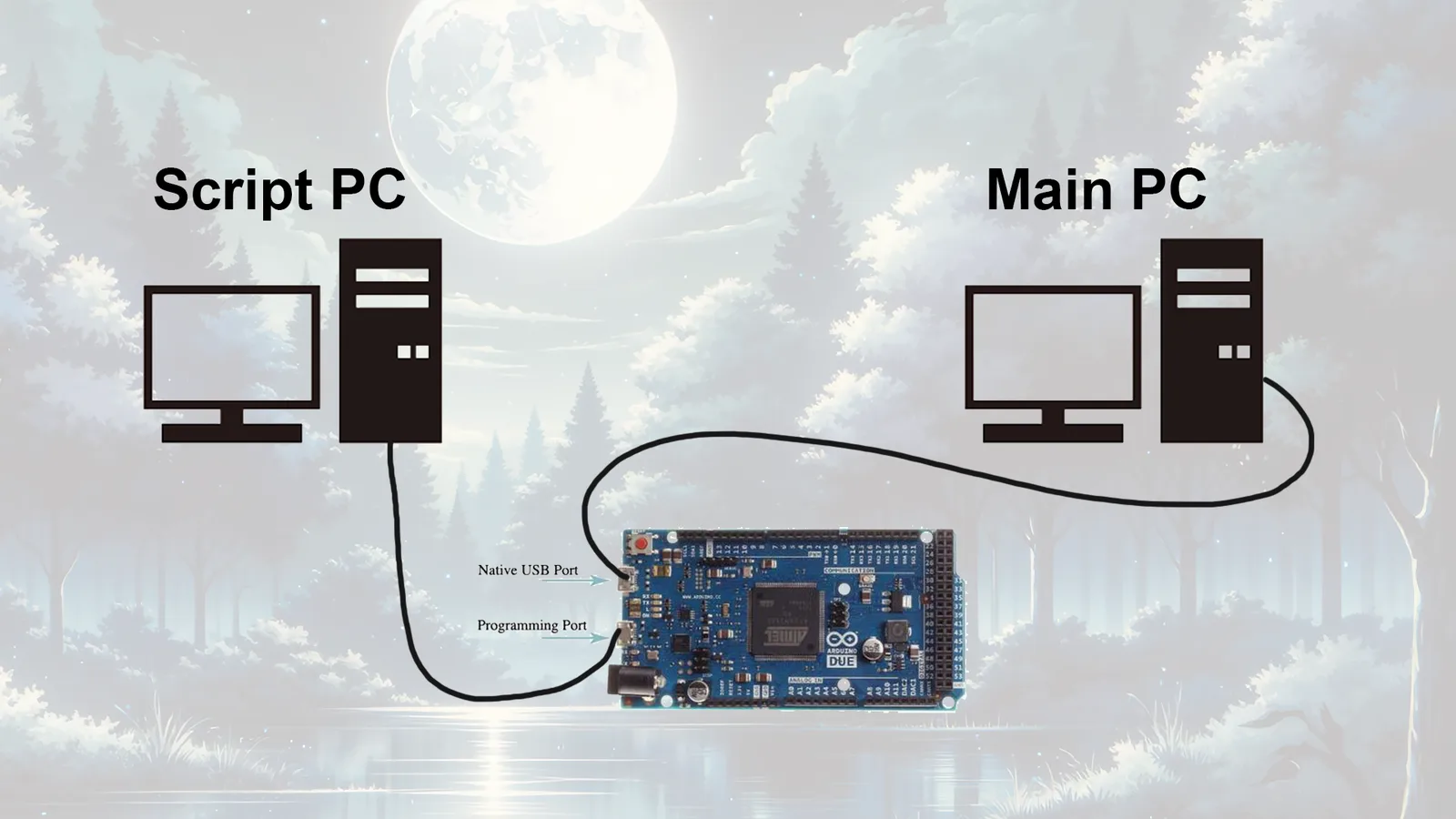
#CONNECT THE ARDUINO DUE TO BOTH PCs
🔌 Hardware Setup:
- Grab 1 micro usb cable and plug from the Arduino Due "Programming Port" to the script PC.
- Grab 1 micro usb cable and plug from the Arduino Due "Native USB Port" to the main PC.
You have successfully completed the hardware setup!
#MOUSE SOFTWARE SETUP
🖱️ Mouse Setup: Make sure to download mouse software on the 2nd PC and set the mouse polling rate up to 4k. (basically if you have a 1k mouse set it to 1k. If you have an 8k mouse, set it to 4k). Ensure that "Enhance Pointer Precision" is turned off on the 2nd PC.
#RUN MOONLINK!
🚀 Program Setup:
- Open Moonlink.exe in the Moonlink folder located in
C:\moonlink\. - Register or login.
- If you bought a Color or AI sub, you will use that key..
- The GUI should pop up.
- Unplug your mouse from the Gaming PC and plug it into the Script PC.
- Ensure only ONE mouse is plugged into the Script PC, or Moonlink might get confused.
- To enter capture mode, click "Enter Capture Mode".
- To exit capture mode, hit the ESC key on your keyboard.
#🛠️ Quick Fix: Mouse Not Moving in Capture Mode
If your mouse isn’t moving on the Gaming PC after entering Moonlink Capture Mode, follow these quick troubleshooting steps:
#🔄 1) Reflash the Arduino
🚨 If flashing fails or gets stuck:
- Make sure the Arduino is in bootloader mode (Press Reset before flashing).
- If the COM port doesn’t appear, try another USB port.
#🔌 2) Check Cable & Connection Quality
- Use a high-quality USB cable for the Arduino (cheap cables can cause data loss).
- If using a USB hub, plug the Arduino directly into the PC.
#🔄 4) Power Cycle Everything
✅ Steps to Reset & Power Cycle:
- Unplug the Arduino from the PC.
- Unplug any extra hardware.
- Wait 5 seconds, then plug everything back in.
- Open Moonlink.exe → Click Enter Capture Mode again.
#🚀 TL;DR - Quick Fix Checklist
✅ Reflash Arduino firmware
✅ Use a high-quality USB cable
✅ Unplug and replug the Arduino & all hardware
If the issue still persists, post in the support chat with screenshots of:
✅ Device Manager (Ports & COM LPT section)
✅ Firmware flashing output
This should resolve 90% of cases where the mouse isn’t moving in Capture Mode. 🚀
Stuck on a step? Ask in the Moonlight Discord and a staff member will help.